HEIC to JPG on Mac, a whole batch at once.
iPhone photos are HEIC, and plenty of websites, forms and Windows PCs still won’t take them. Convert them all in one drag.
Free 7-day trial · then one purchase, no subscription · macOS 14+
In short: To convert HEIC to JPG on a Mac, select the photos, drag, pause and choose Convert › JPEG in Sheaf; a JPEG appears next to each one. macOS also has a Convert Image Quick Action in Finder’s right-click menu.Updated 13 November 2026
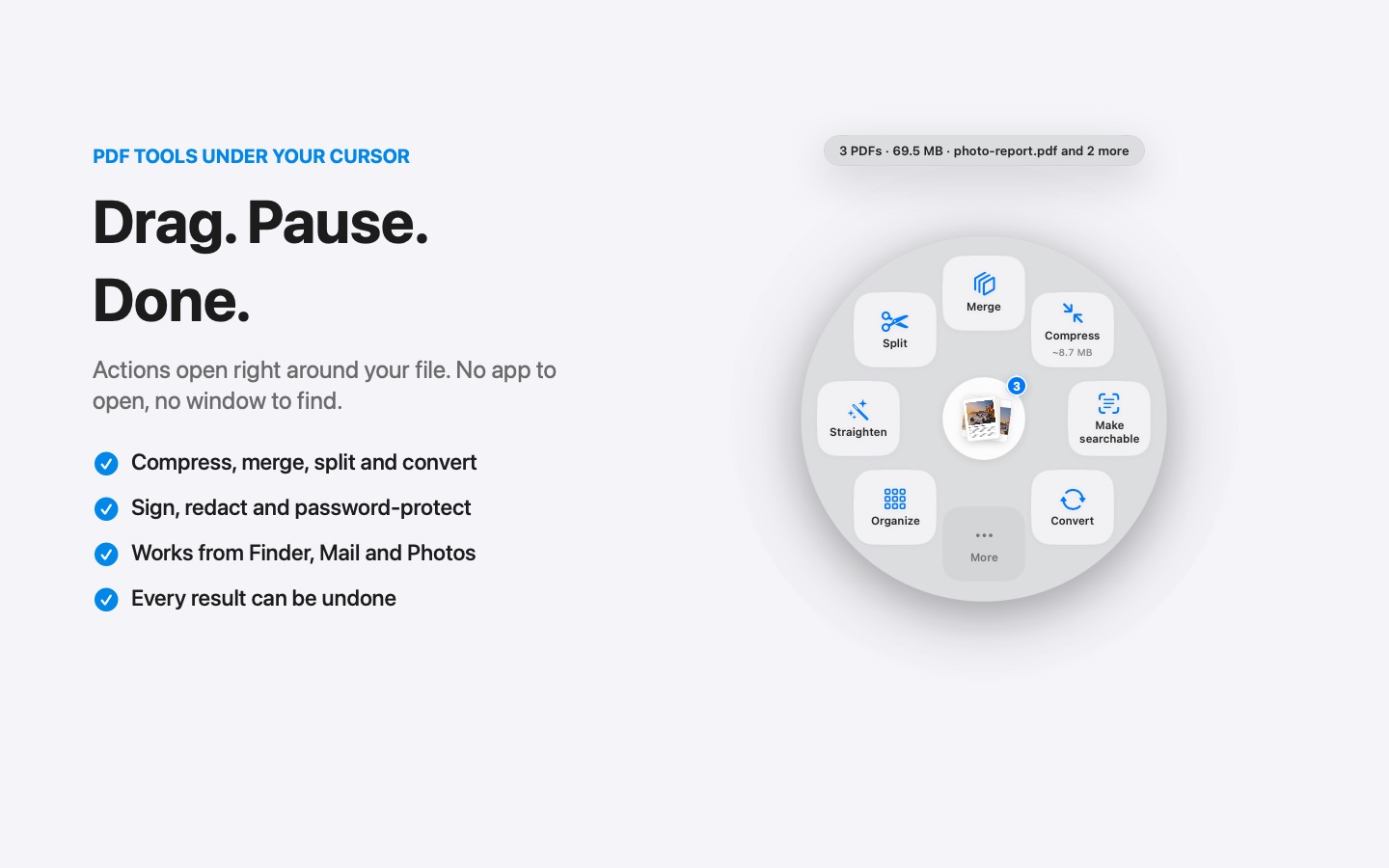
HEIC to JPG in three moves.
No app to open, no window to find. It happens where the file already is.
- Drag
Start dragging the file from Finder, Mail, Photos or your desktop.
- Pause
Hold still for a moment. Sheaf’s actions open in a circle around your cursor.
- Choose Convert › JPEG
A JPEG appears beside each HEIC photo. Originals stay as they are.
Three ways to do it, honestly compared.
Finder Quick Action
Right-click › Quick Actions › Convert Image.
- Free and built in
- Works on several files
- Hidden in a right-click menu
Online PDF sites
Upload the file to a website, wait, download the result.
- Your document goes to someone else’s server
- Free plans limit files, size or tasks per day
- Needs an internet connection
SheafFastest
Drag the file, pause, let go.
- JPEG, PNG, HEIC or AVIF
- Resize in the same step (2560, 1600, 1080 px)
- Works on photos dragged from Photos
Why HEIC causes trouble
HEIC files are about half the size of JPEGs at the same quality, which is why iPhones use them. But many upload forms, older Windows PCs and some websites only accept JPEG or PNG. Converting before you upload avoids “unsupported file” errors.
Need them smaller too?
Choose Resize to make the long side 2560, 1600 or 1080 pixels: ideal for email and web forms. Or turn the photos into one PDF with Make PDF.
Questions
How do I convert HEIC to JPG on a Mac for free?
Right-click the photos in Finder › Quick Actions › Convert Image, or open one in Preview and export as JPEG.
Can I convert many HEIC files at once?
Yes. Select them all, drag, and choose Convert › JPEG in Sheaf.
Does converting lose quality?
Slightly, as JPEG is compressed; at normal settings the difference isn’t visible.
Related tools and guides
Your next PDF takes one second.
Drag it, pause, let go. Free for 7 days, then yours with one purchase. Family Sharing included.
Download for MacMac App Store · macOS 14 or later · Apple silicon and Intel