PDF to JPG on Mac, every page at once.
For slides on social media, a page in a presentation, or a site that only accepts images. Get all pages as pictures in one go.
Free 7-day trial · then one purchase, no subscription · macOS 14+
In short: To convert a PDF to JPG on a Mac, drag it, pause and choose Convert › JPEG (or PNG) in Sheaf. Every page is saved as an image named “Page 1”, “Page 2” and so on. Preview exports only the page you’re viewing.Updated 13 November 2026
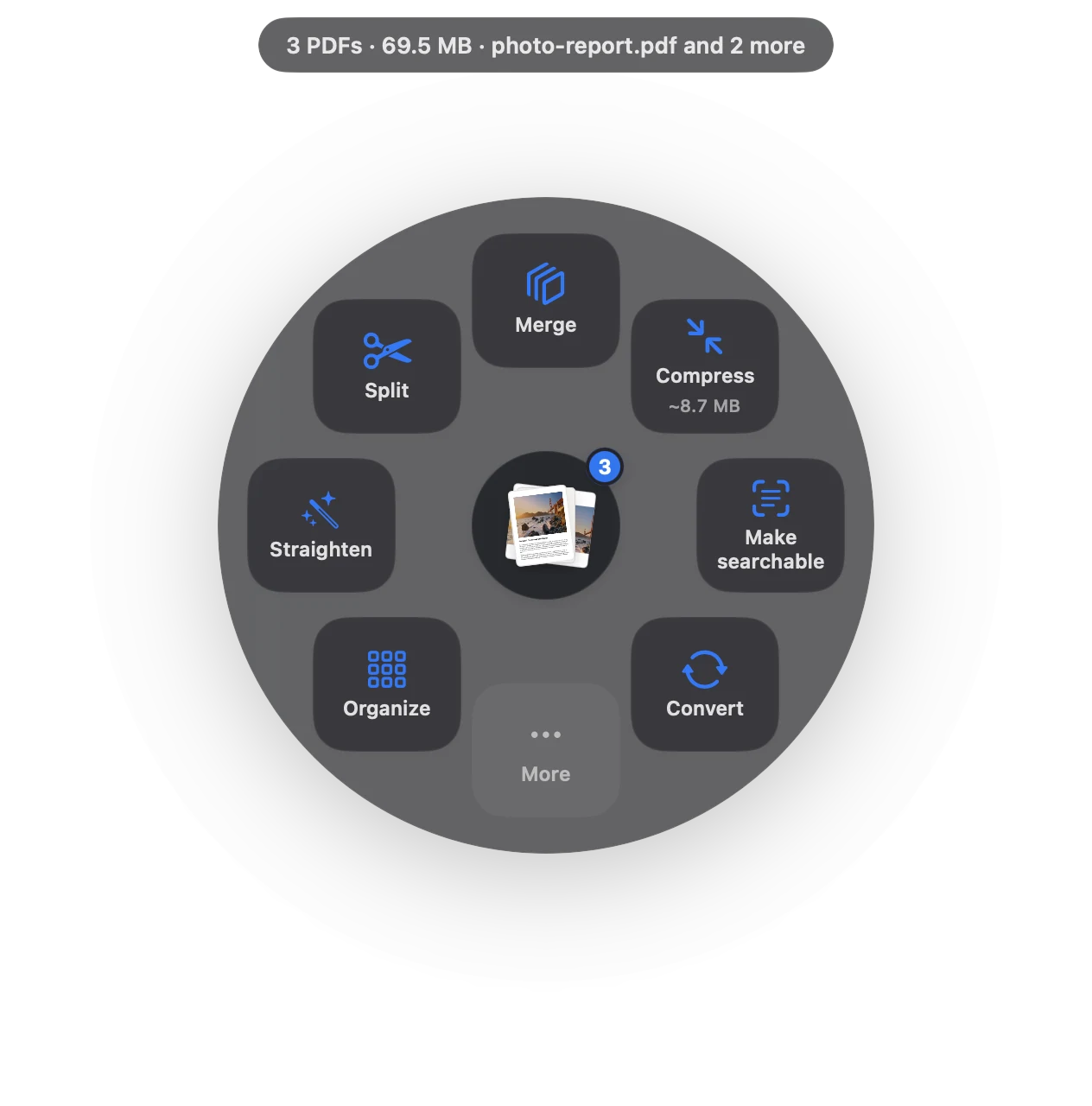
PDF to JPG in three moves.
No app to open, no window to find. It happens where the file already is.
- Drag
Start dragging the file from Finder, Mail, Photos or your desktop.
- Pause
Hold still for a moment. Sheaf’s actions open in a circle around your cursor.
- Choose Convert › JPEG or PNG
A folder of images appears, one per page, in order.
Three ways to do it, honestly compared.
Preview (built in)
File › Export, Format › JPEG, one page at a time.
- Free and built in
- One page per export
- Easy to lose track on long files
Online PDF sites
Upload the file to a website, wait, download the result.
- Your document goes to someone else’s server
- Free plans limit files, size or tasks per day
- Needs an internet connection
SheafFastest
Drag the file, pause, let go.
- All pages in one step
- JPEG for photos, PNG for crisp text
- Named in page order
JPEG or PNG?
JPEG files are smaller and fine for photos and slides. PNG keeps text and line drawings perfectly crisp, at a bigger size. If a site asks for “an image of your document”, JPEG is usually what it wants.
Images back into a PDF
Have photos or scans you want as one PDF? That’s the reverse: JPG to PDF.
Questions
How do I convert all pages of a PDF to JPG on a Mac?
Drag the PDF onto Sheaf and choose Convert › JPEG. Every page becomes its own image.
Can Preview convert a multi-page PDF to JPG?
Preview exports the current page only, so you repeat it for each page.
Is image quality good enough to print?
Yes for most documents; choose PNG for the sharpest text.
Related tools and guides
Your next PDF takes one second.
Drag it, pause, let go. Free for 7 days, then yours with one purchase. Family Sharing included.
Download for MacMac App Store · macOS 14 or later · Apple silicon and Intel