Make scanned PDFs searchable.
A scan is just a picture of text: you can’t search it, copy from it or highlight it. OCR adds the text, so you can.
Free 7-day trial · then one purchase, no subscription · macOS 14+
In short: To OCR a PDF on a Mac, drag the scan, pause and choose Make searchable in Sheaf. It reads every page with macOS’s on-device text recognition and saves a copy you can search and copy from, looking exactly the same. Preview’s Live Text lets you select text but doesn’t save a searchable PDF.Updated 13 November 2026
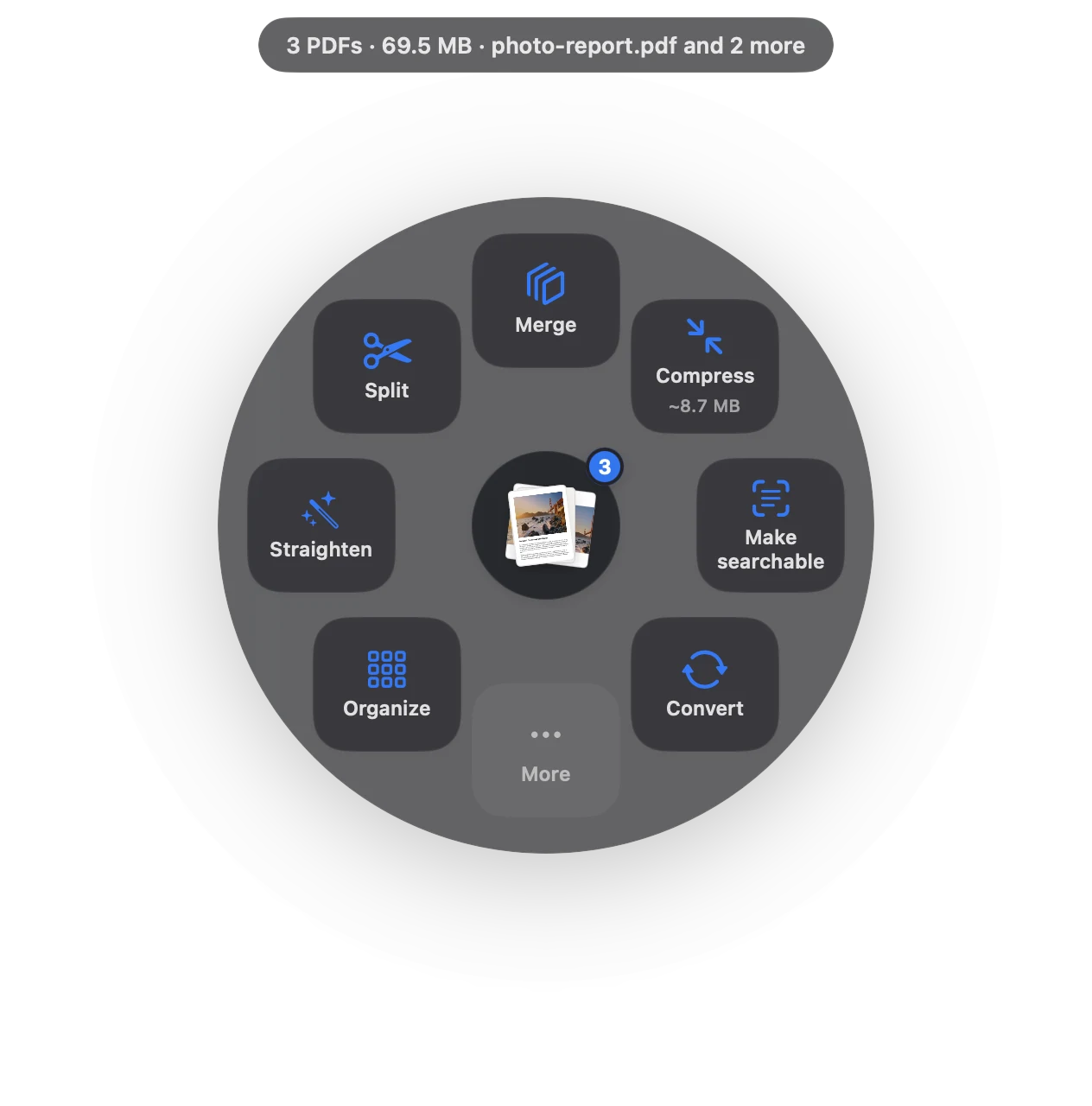
OCR a scanned PDF in three moves.
No app to open, no window to find. It happens where the file already is.
- Drag
Start dragging the file from Finder, Mail, Photos or your desktop.
- Pause
Hold still for a moment. Sheaf’s actions open in a circle around your cursor.
- Let go on Make searchable
A searchable copy appears. Pages look the same; now Cmd-F works.
Three ways to do it, honestly compared.
Preview (built in)
Live Text lets you select text in a scan.
- Free and built in
- Doesn’t save a searchable PDF
- Spotlight still can’t find the words
Online PDF sites
Upload the file to a website, wait, download the result.
- Your document goes to someone else’s server
- Free plans limit files, size or tasks per day
- Needs an internet connection
SheafFastest
Drag the file, pause, let go.
- Searchable, copyable text on every page
- Runs on your Mac, no upload
- Pages look exactly the same
What OCR gives you
- Search with Cmd-F in Preview, and find the file with Spotlight by words inside it.
- Copy a paragraph or a number out of a scanned contract or statement.
- Highlight and annotate text in scanned course readers.
Why on-device matters
Scans are often the most private documents you have: IDs, medical letters, signed contracts. Sheaf uses the text recognition built into macOS, so nothing leaves your Mac.
Fix the scan first
Crooked or sideways pages recognise better when they’re upright: use Straighten first. Big scans also shrink a lot with Compress.
Questions
Does Mac have built-in OCR for PDFs?
macOS has Live Text, which lets you select text in images and scans in Preview, but it doesn’t save a searchable PDF. Sheaf uses the same on-device recognition to save one.
Will OCR change how my PDF looks?
No. The text is added invisibly behind each page image, so the page looks the same.
Which languages does OCR support?
Sheaf uses macOS’s text recognition, which reads many languages, including English, major European languages, Chinese, Japanese and Korean, depending on your macOS version.
Related tools and guides
Your next PDF takes one second.
Drag it, pause, let go. Free for 7 days, then yours with one purchase. Family Sharing included.
Download for MacMac App Store · macOS 14 or later · Apple silicon and Intel