Photos to one PDF, straight from Finder or Photos.
Phone photos of a form, receipts for an expense claim, screenshots for a bug report: one tidy PDF, in seconds.
Free 7-day trial · then one purchase, no subscription · macOS 14+
In short: To convert JPG to PDF on a Mac, select the images in Finder (or drag them out of Photos), pause and choose Make PDF in Sheaf. You get one PDF with a page per image, in your order. Preview can also print images to PDF.Updated 13 November 2026
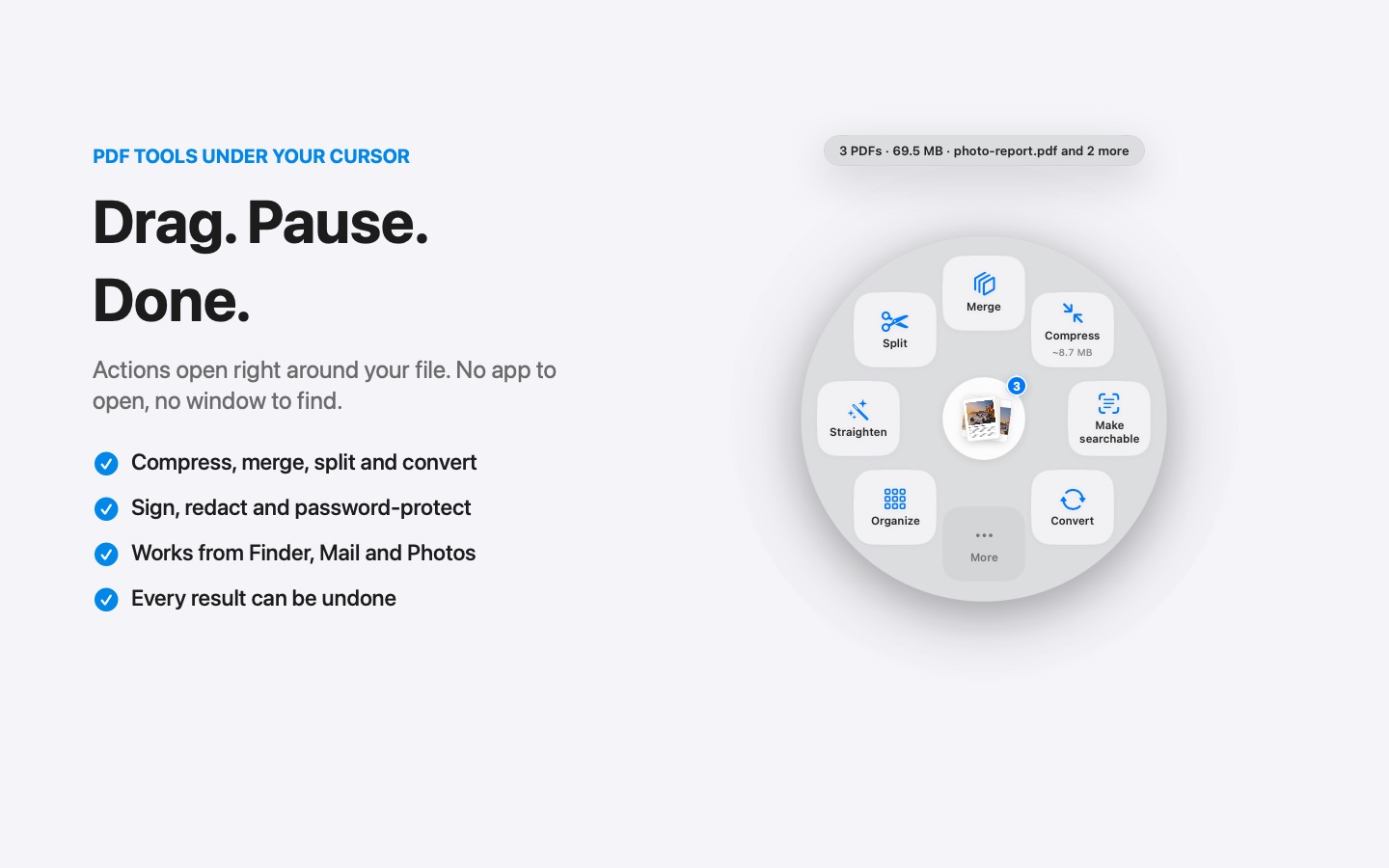
JPG to PDF in three moves.
No app to open, no window to find. It happens where the file already is.
- Drag
Start dragging the file from Finder, Mail, Photos or your desktop.
- Pause
Hold still for a moment. Sheaf’s actions open in a circle around your cursor.
- Let go on Make PDF
One PDF appears, a page per image, in the order you selected them.
Three ways to do it, honestly compared.
Preview (built in)
Open all images, select the thumbnails, File › Print › Save as PDF.
- Free and built in
- Several steps
- Easy to get the order wrong
Online PDF sites
Upload the file to a website, wait, download the result.
- Your document goes to someone else’s server
- Free plans limit files, size or tasks per day
- Needs an internet connection
SheafFastest
Drag the file, pause, let go.
- JPEG, PNG and HEIC together
- Drag straight out of Photos
- Compress it in the same drag after
Straight from Photos
Drag photos out of the Photos app and pause: Sheaf turns them into a PDF without exporting them first. Handy for documents you photographed with your iPhone.
Keep it small
Phone photos are big. If the PDF is for email or an upload form, drag it again and choose Compress. For a cleaner look, photograph documents flat, in good light, and fill the frame.
Add them to an existing PDF
Drag the images together with a PDF and choose Merge: pictures and PDF pages become one file.
Questions
How do I combine multiple JPGs into one PDF on a Mac?
Select them in Finder, drag, pause, and choose Make PDF in Sheaf. In Preview, open them together and print to PDF.
Can I convert HEIC photos to PDF?
Yes. Sheaf accepts HEIC, JPEG and PNG in the same drag.
Why is my photo PDF so large?
Phone photos are high resolution. Compress the PDF afterwards to shrink it.
Related tools and guides
Your next PDF takes one second.
Drag it, pause, let go. Free for 7 days, then yours with one purchase. Family Sharing included.
Download for MacMac App Store · macOS 14 or later · Apple silicon and Intel