Password-protect a PDF before you send it.
Payslips, tax returns, ID scans and contracts shouldn’t sit unprotected in someone’s inbox. Lock them with a password in seconds.
Free 7-day trial · then one purchase, no subscription · macOS 14+
In short: To password-protect a PDF on a Mac, drag it, pause and choose Protect in Sheaf, then type a password. Sheaf saves an encrypted copy that asks for the password to open. Preview can also encrypt when you export a PDF.Updated 13 November 2026
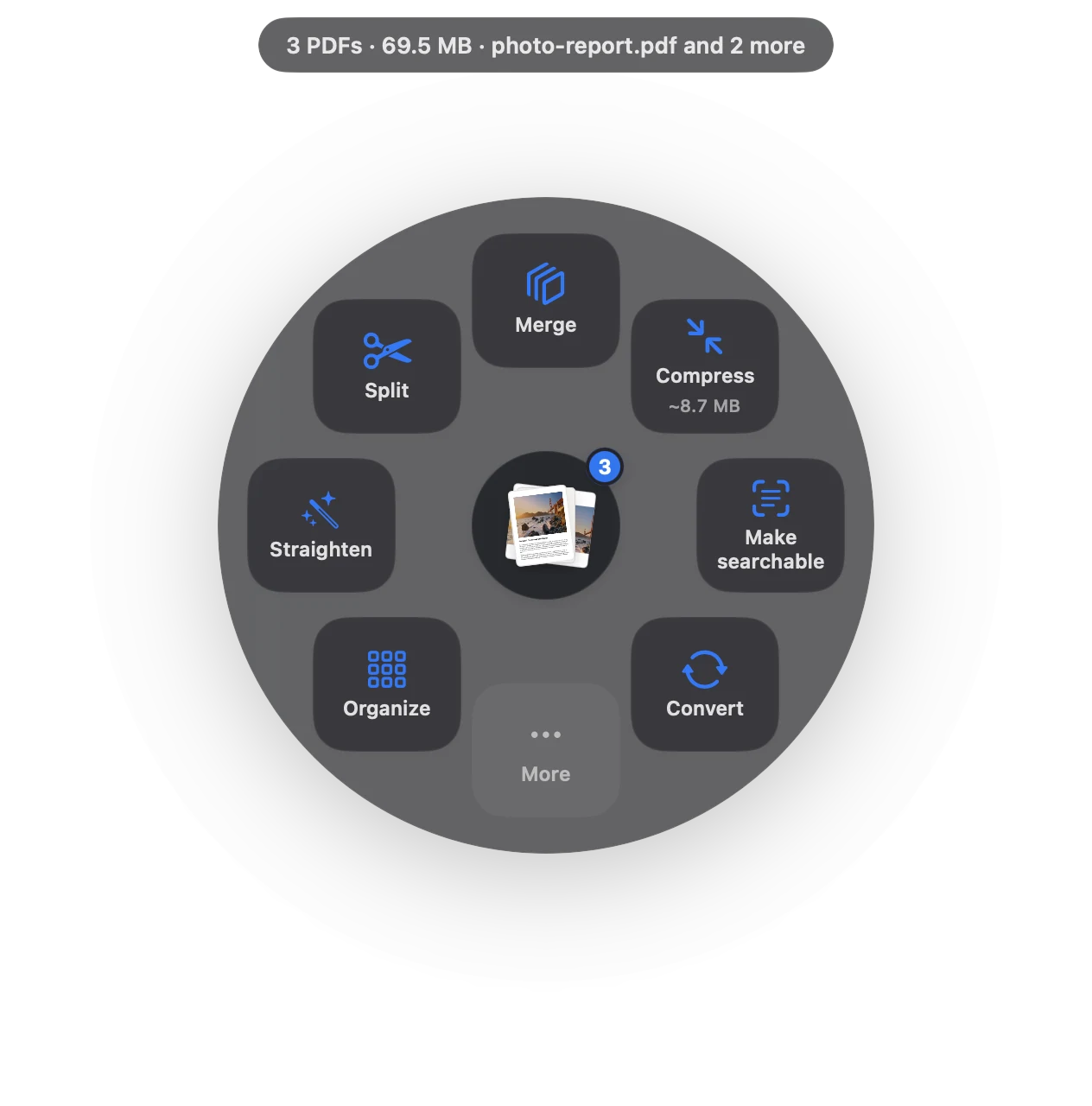
Password-protect PDF in three moves.
No app to open, no window to find. It happens where the file already is.
- Drag
Start dragging the file from Finder, Mail, Photos or your desktop.
- Pause
Hold still for a moment. Sheaf’s actions open in a circle around your cursor.
- Choose More › Protect
Type a password. An encrypted copy appears next to the original.
Three ways to do it, honestly compared.
Preview (built in)
File › Export, tick Encrypt, type a password.
- Free and built in
- Encrypts the PDF
- Easy to overwrite the original
Online PDF sites
Upload the file to a website, wait, download the result.
- Your document goes to someone else’s server
- Free plans limit files, size or tasks per day
- Needs an internet connection
SheafFastest
Drag the file, pause, let go.
- Encrypted copy, original untouched
- Asks for the password to open
- Nothing uploaded
Send the password separately
A password is only as safe as how you share it. Send the PDF by email and the password by text message or a call, never in the same email.
Good passwords for documents
Use something the receiver can type easily but others can’t guess: three random words beat a short complicated one. Banks and payroll often use a date of birth or part of an ID number; that’s convenient but weaker.
Opening protected PDFs you receive
Got a statement or payslip locked with your details? See how to open a password-protected PDF.
Questions
How do I put a password on a PDF on a Mac for free?
In Preview: File › Export, tick Encrypt and enter a password. Sheaf does the same from a drag and keeps the original unchanged.
Can I remove the password later?
If you know it, yes: open the protected copy and save it without encryption, or keep the original you started from.
Is a password-protected PDF secure?
Modern PDF encryption is strong; the weak point is usually the password. Use a long one and send it separately.
Related tools and guides
Your next PDF takes one second.
Drag it, pause, let go. Free for 7 days, then yours with one purchase. Family Sharing included.
Download for MacMac App Store · macOS 14 or later · Apple silicon and Intel