Merge PDFs on Mac, in the order you picked.
Receipts, scans, contracts and photos into one clean PDF. Select them in Finder, drag, and they’re combined before you’d find the menu in Preview.
Free 7-day trial · then one purchase, no subscription · macOS 14+
In short: To merge PDFs on a Mac, select them in Finder, drag, pause and choose Merge in Sheaf. You get one new PDF with a bookmark per file; the originals stay as they were. Preview can also merge by dragging files into its thumbnail sidebar.Updated 13 November 2026
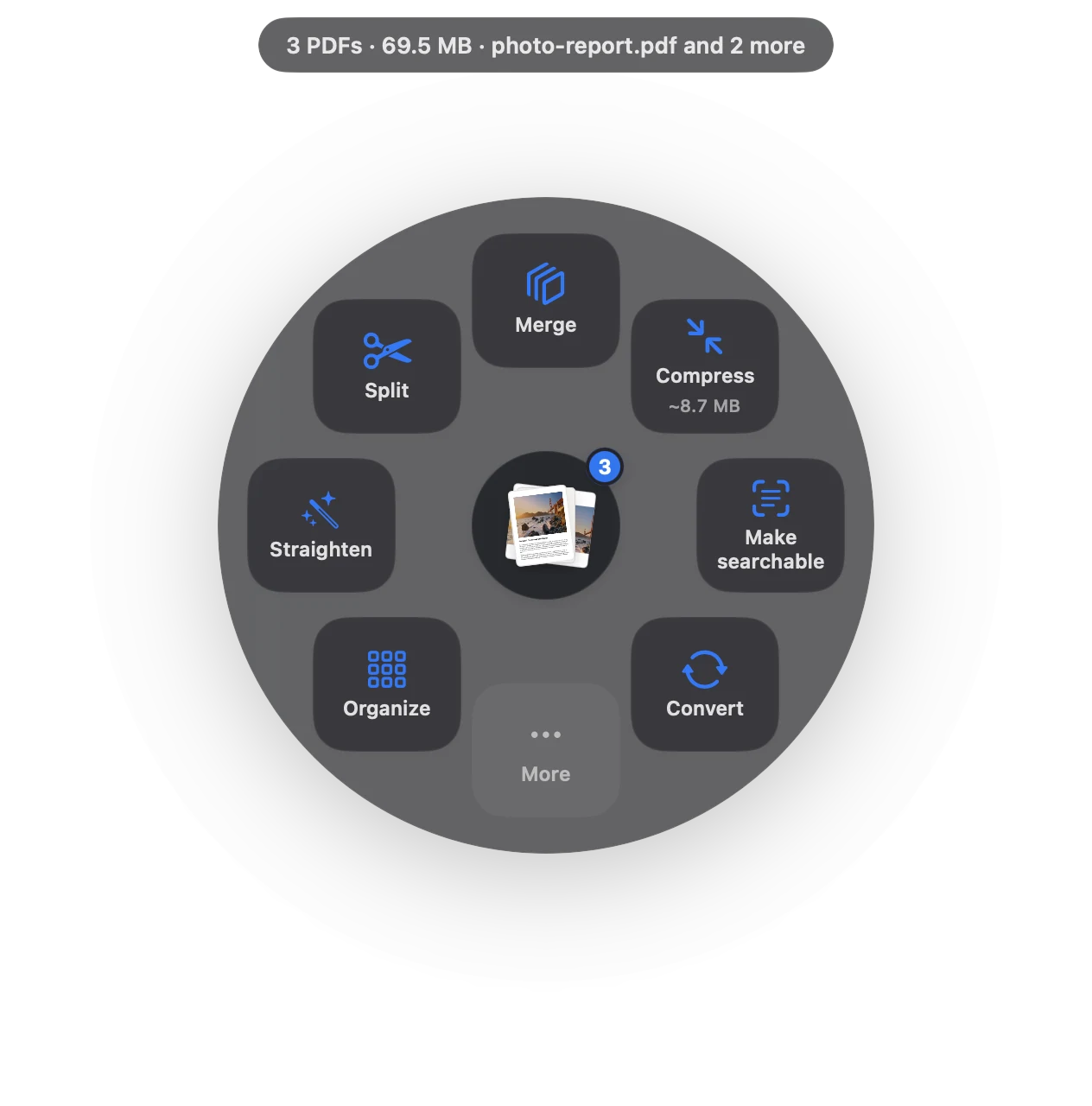
Merge PDF in three moves.
No app to open, no window to find. It happens where the file already is.
- Drag
Start dragging the file from Finder, Mail, Photos or your desktop.
- Pause
Hold still for a moment. Sheaf’s actions open in a circle around your cursor.
- Let go on Merge
One new PDF appears, in the order of your selection, with a bookmark for each file.
Three ways to do it, honestly compared.
Preview (built in)
Open one PDF, show thumbnails, drag the others in, then Export as PDF.
- Free and built in
- Easy to drop a file in the wrong place
- Can change the original if you save over it
Online PDF sites
Upload the file to a website, wait, download the result.
- Your document goes to someone else’s server
- Free plans limit files, size or tasks per day
- Needs an internet connection
SheafFastest
Drag the file, pause, let go.
- PDFs and images in the same drag
- A bookmark for every original file
- Originals untouched; Undo puts it all back
Merge PDFs and images together
Sheaf accepts PDFs and pictures (JPEG, PNG, HEIC) in the same drag, so a scanned form, two photos of receipts and a signed contract become one PDF. Images are placed on pages sized to fit them.
Control the order
Files are merged in the order you selected them in Finder. Want to move pages around, drop a blank page or rotate one? Choose Organize instead: you see every page of every file, rearrange them, and save one clean PDF.
Too big to send after merging?
Drag the merged file again and choose Compress. Or split it into parts that fit an email limit.
Where the files go
The merged PDF is saved next to the originals (or in Downloads, if you haven’t given Sheaf folder access), and it’s shown right away with buttons to open it, show it in Finder or undo.
Questions
Can I merge PDFs and JPGs together?
Yes. Sheaf accepts PDFs and images in the same drag and turns them into one PDF.
How do I merge PDFs on a Mac for free?
In Preview, open the first PDF, show thumbnails (View › Thumbnails), drag the other PDFs onto the sidebar, then File › Export as PDF.
Does merging keep bookmarks and links?
Sheaf adds a bookmark for each original file, and the pages keep their text and links.
How do I change the page order before merging?
Use Organize in Sheaf: drag pages into any order across several PDFs, delete or rotate them, then save one file.
Related tools and guides
Your next PDF takes one second.
Drag it, pause, let go. Free for 7 days, then yours with one purchase. Family Sharing included.
Download for MacMac App Store · macOS 14 or later · Apple silicon and Intel