Word to PDF on Mac, no Word needed.
Résumés, letters and reports become PDFs that look the same everywhere. Drag ten documents at once and get ten PDFs.
Free 7-day trial · then one purchase, no subscription · macOS 14+
In short: To convert Word to PDF on a Mac, drag the .docx (or several), pause and choose Convert to PDF in Sheaf. It lays out Word, RTF, OpenDocument, text and Markdown with their own page size and margins, and renders HTML files too. Word and Pages can also export one file at a time.Updated 13 November 2026
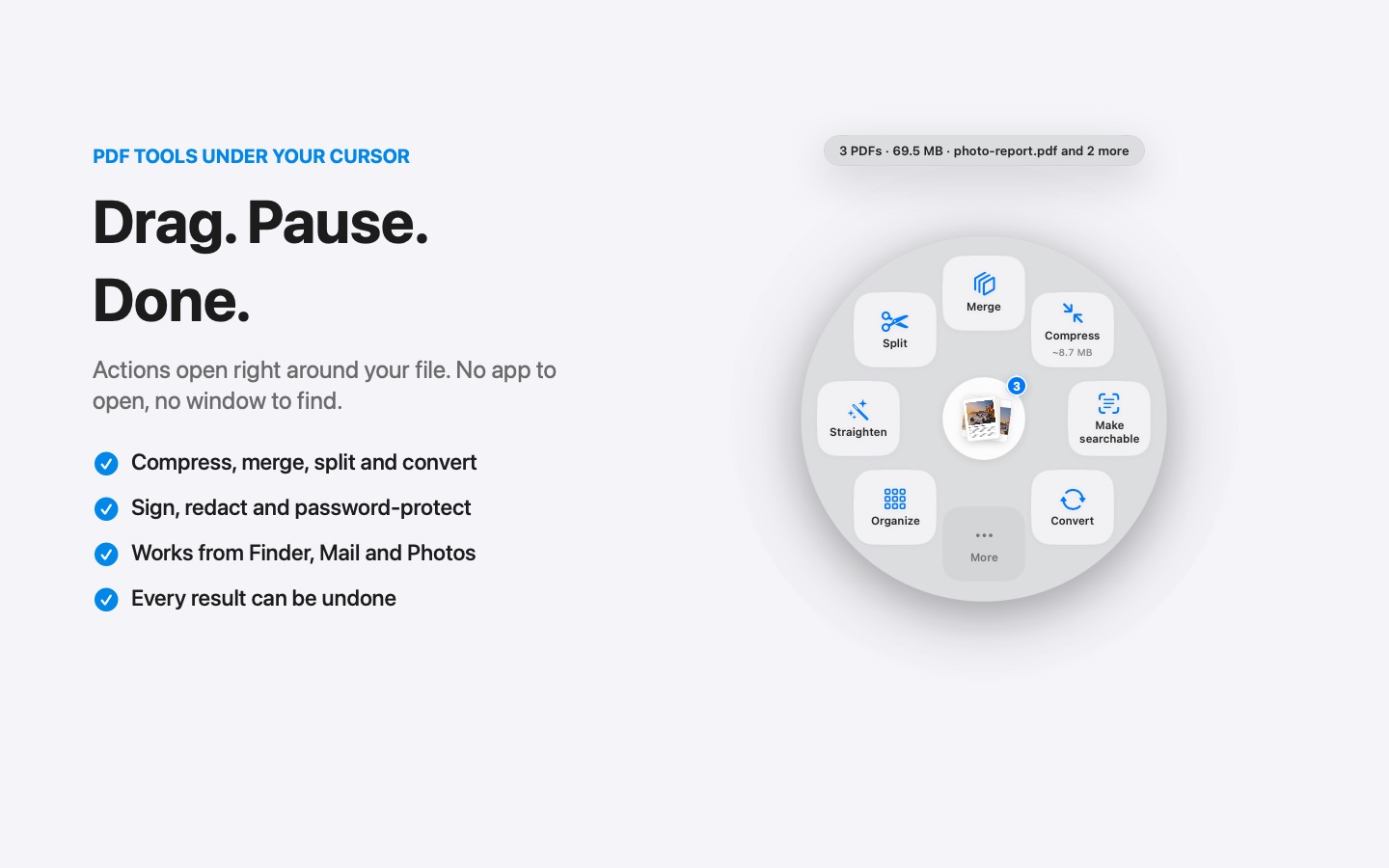
Word to PDF in three moves.
No app to open, no window to find. It happens where the file already is.
- Drag
Start dragging the file from Finder, Mail, Photos or your desktop.
- Pause
Hold still for a moment. Sheaf’s actions open in a circle around your cursor.
- Let go on Convert to PDF
A PDF appears next to each document, ready to send.
Three ways to do it, honestly compared.
Word or Pages
Open the file, then File › Export / Save as PDF.
- Exact layout from the app itself
- One file at a time
- Needs the app installed
Online PDF sites
Upload the file to a website, wait, download the result.
- Your document goes to someone else’s server
- Free plans limit files, size or tasks per day
- Needs an internet connection
SheafFastest
Drag the file, pause, let go.
- Many documents at once
- .docx, .doc, .rtf, .odt, .txt, .md, .html
- No Word or Pages needed
Which files work
Word (.docx and .doc), RTF, OpenDocument text (.odt), plain text, Markdown and web pages (.html, .webarchive). Sheaf uses the page size and margins saved in the file, and keeps lists, tables and images in place.
Pages, Keynote and Numbers files aren’t converted by the Mac App Store version; export those from the app itself.
When to use the app instead
For a document with a complicated design (custom fonts not on your Mac, text boxes, columns), exporting from Word or Pages gives the exact look. Sheaf is the fast way for everyday documents, and for many at once.
After converting
Combine the PDFs into one with Merge, add page numbers, or remove the author name before sending.
Questions
How do I convert Word to PDF on a Mac without Word?
Drag the .docx onto Sheaf and choose Convert to PDF. TextEdit can also open many Word files and print them to PDF.
Can I convert several Word files to PDF at once?
Yes. Select them all in Finder, drag, and choose Convert to PDF. Each gets its own PDF.
Does it work with Pages files?
Not in the Mac App Store version. In Pages, use File › Export To › PDF.
Related tools and guides
Get the text into an editable .docx.
Merge PDFsPDFs and images into one file, with bookmarks.
Remove PDF metadataAuthor, history, comments, hidden layers.
Add page numbers“Page 1 of 9”, headers, footers, Bates.
For job seekersRésumés, applications, offer letters.
For studentsAssignments, scans and forms.
Your next PDF takes one second.
Drag it, pause, let go. Free for 7 days, then yours with one purchase. Family Sharing included.
Download for MacMac App Store · macOS 14 or later · Apple silicon and Intel