Split a PDF on Mac any way you need.
Pull out pages 3–7, save every page on its own, or cut a huge scan into parts small enough to email.
Free 7-day trial · then one purchase, no subscription · macOS 14+
In short: To split a PDF on a Mac, drag it, pause and choose Split in Sheaf, then pick every page, a page range, or email-sized parts. New files appear next to the original. In Preview you can drag thumbnails to the desktop or print a page range to PDF.Updated 13 November 2026
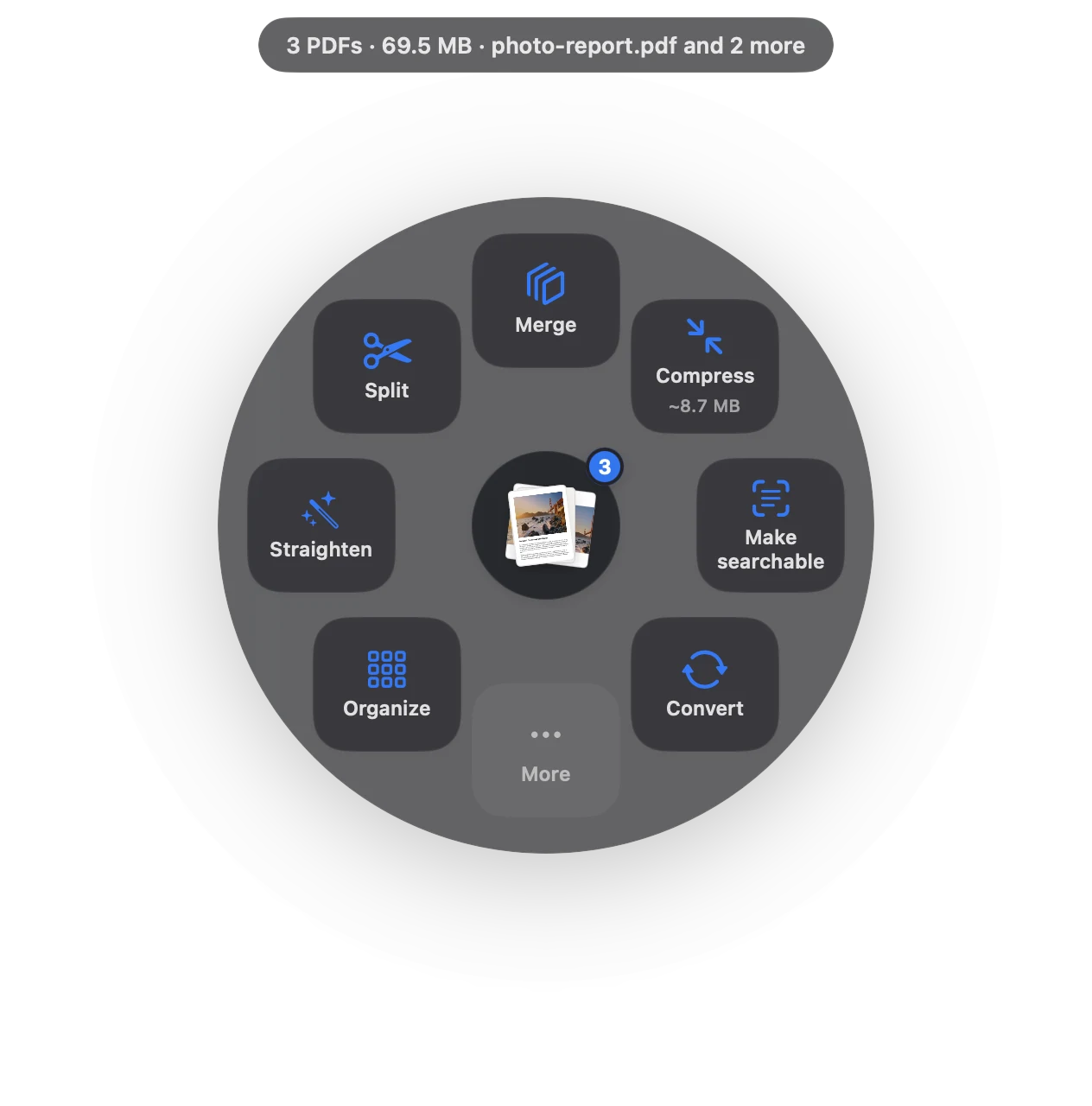
Split PDF in three moves.
No app to open, no window to find. It happens where the file already is.
- Drag
Start dragging the file from Finder, Mail, Photos or your desktop.
- Pause
Hold still for a moment. Sheaf’s actions open in a circle around your cursor.
- Let go on Split
Choose single pages, a range like 3–7, or parts under your email size limit.
Three ways to do it, honestly compared.
Preview (built in)
Drag thumbnails to the desktop, or Print › page range › Save as PDF.
- Free and built in
- One range at a time
- No split by file size
Online PDF sites
Upload the file to a website, wait, download the result.
- Your document goes to someone else’s server
- Free plans limit files, size or tasks per day
- Needs an internet connection
SheafFastest
Drag the file, pause, let go.
- Every page, a range, or by size
- Email-sized parts in one step
- Original stays untouched
Three ways to split
- Every page: one PDF per page, numbered in order.
- Page range: type pages like 3–7 to pull exactly those into a new file.
- By size: parts that each fit your email limit (25 MB by default; change it in Settings).
Splitting vs. compressing
If a file is just a little too big, compress it first: one file is easier for the person receiving it. Split when the file is huge even after compressing, like a 300-page scanned archive, or when the receiver only needs some pages.
Removing pages instead
To delete a few pages and keep the rest as one file, use Organize: select the pages and delete them, then save.
Questions
How do I split a PDF into separate pages on a Mac?
In Sheaf, drag the PDF, choose Split › Every page. In Preview, drag each thumbnail from the sidebar to the desktop.
How do I extract certain pages from a PDF on a Mac?
Choose Split › Page range in Sheaf and type the pages you want, like 3–7.
Can I split a PDF by file size?
Yes. Sheaf’s Split › By size makes parts under your email limit, 25 MB by default.
Related tools and guides
Shrink scans and decks, keep text sharp.
Reorder & delete pagesAcross several PDFs, then save one.
Merge PDFsPDFs and images into one file, with bookmarks.
PDF too big to email?Get under 25 MB, or split into parts.
PDF to JPGEvery page as a JPEG or PNG.
Best PDF apps for MacEight apps compared, with prices.
Your next PDF takes one second.
Drag it, pause, let go. Free for 7 days, then yours with one purchase. Family Sharing included.
Download for MacMac App Store · macOS 14 or later · Apple silicon and Intel